Inviting Users
District admins only. The Invite User flow is gated to district admin accounts. District users, school users, and teacher users cannot invite. If you don't see the Invite User button on the user list, your account doesn't have permission and you need to open a Helpdesk Ticket or ask your existing district admin to send the invitation.
The UI invite flow lets a district admin add a single user (district admin, district user, or school user) without re-uploading the SIS CSVs. The invitee receives an email with an accept link and signs in with Google or Microsoft to claim their account.
See District & School Users for the side-by-side comparison with CSV import and guidance on when each is the right tool.
Before you start
- You're signed in as a district admin (other roles cannot invite).
- The invitee has a Google or Microsoft account on the district's email domain (their sign-in identity).
- Teacher add / remove still goes through CSV. The UI invite covers district admins, district users, and school users only.
Step-by-step: sending an invitation
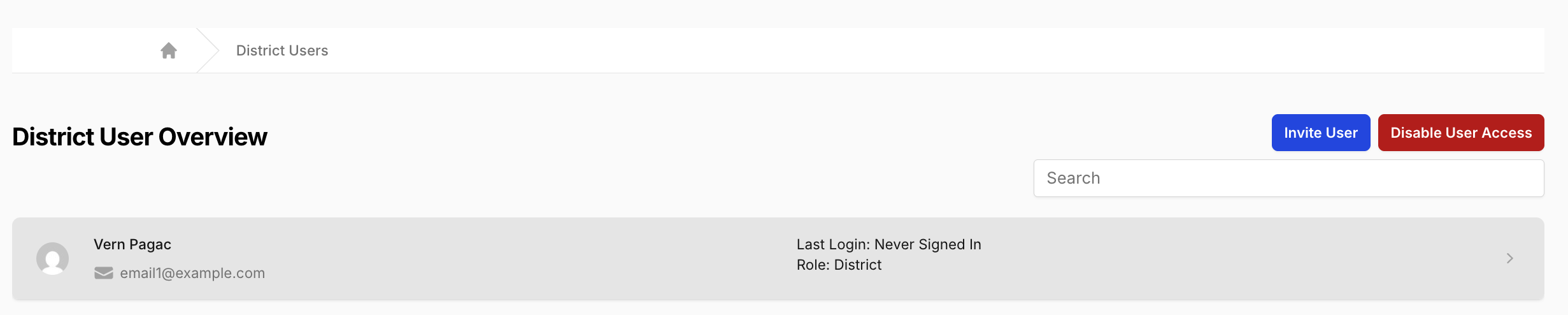
- Open the user menu (avatar in the navbar, top right) and select the user list that matches the role you're inviting: District Users, School Users, or Inactive Users. Any of these brings up the user list with the invite button.
-
Click Invite User at the top right of the list.
-
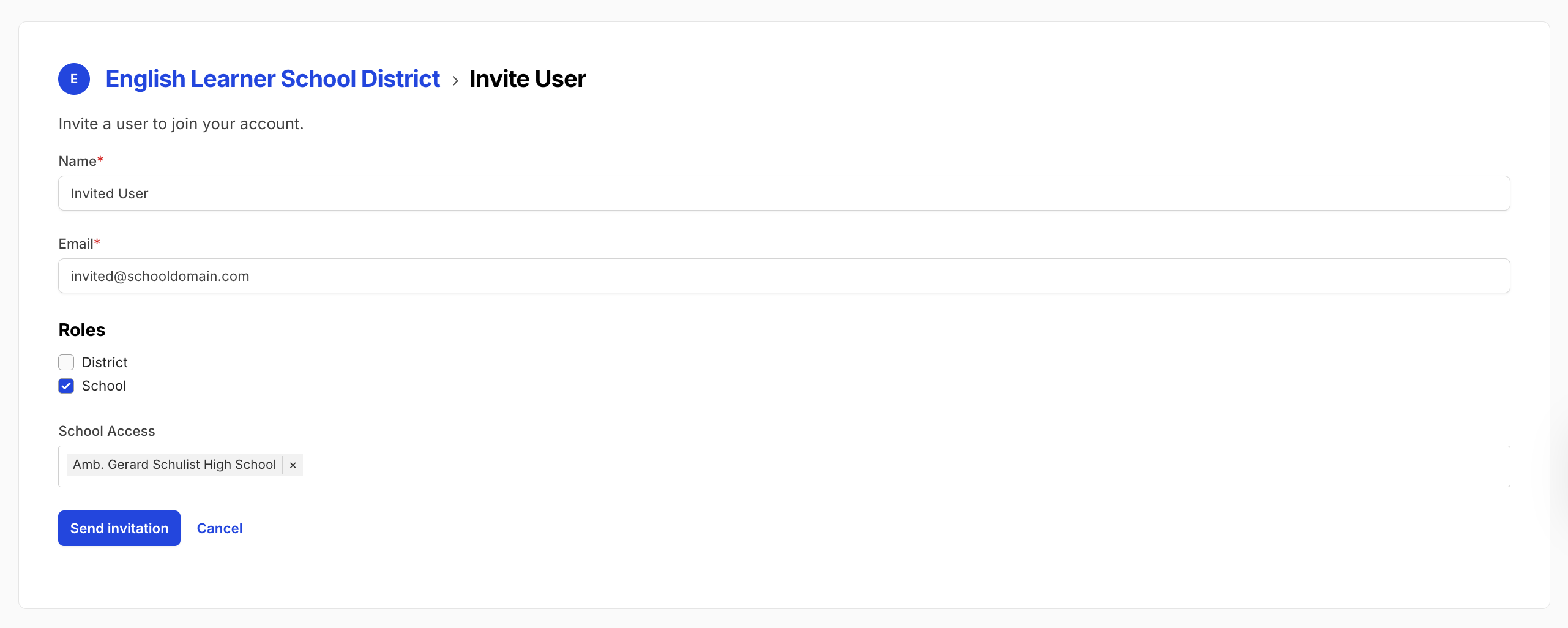
Fill in the form:
- Name: the invitee's full name.
- Email: the email they sign in with. Must match the email on their Google or Microsoft account.
- Roles: check the role(s) you want to grant. The form only shows roles you're allowed to assign.
- School Access: appears automatically when you check the School role. Pick one or more schools the user should see.
-
Click Send invitation.
You'll see a Invitation was sent to {email} confirmation, and the pending invitation appears in the user list.
Multiple roles at once. You can check more than one role on a single invitation (for example, a school user who also needs district-level reporting access). The invitee accepts once and gets all the roles.
What the invitee sees
-
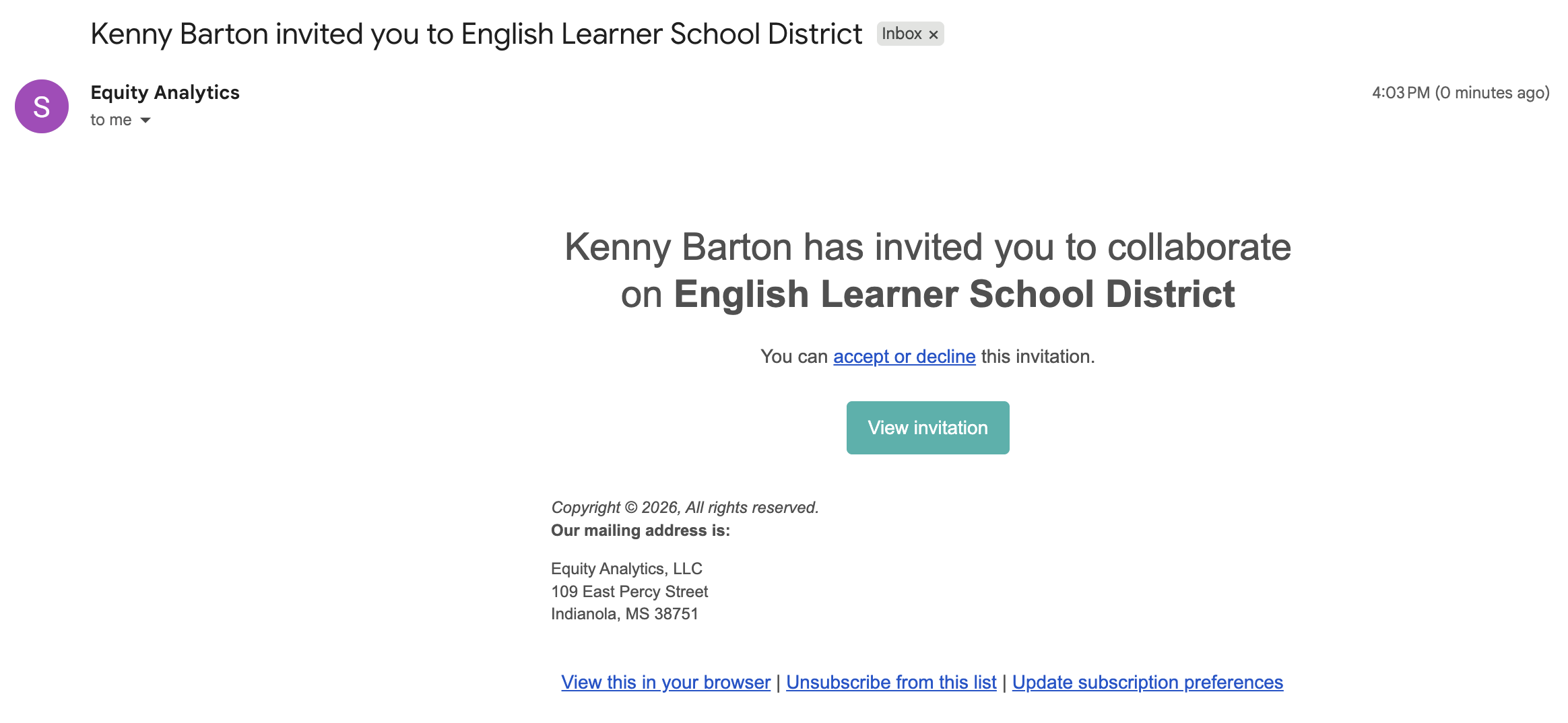
Email arrives with the subject {Your name} invited you to {District name}.
-
Invitee clicks Accept Invitation in the email.
- They land on the invitation page in Equity Analytics. If they aren't signed in yet, they're redirected to sign in first.
- They sign in with Google or Microsoft (see Sign In).
- Back on the invitation page, they click Accept Invitation (or Decline) to finalize.
- On accept, they land on their account list and have access immediately.
Sign-in is Google or Microsoft only. Equity Analytics doesn't use email/password sign-in. To accept an invitation, the invitee needs a Google or Microsoft account on the email address you invited. If they don't have one, contact support: Helpdesk Ticket.
Sent the wrong invitation?
Open a Helpdesk Ticket and we'll revoke or correct it.
Deactivating after the invite
The UI invite flow only adds; it never removes access. To deactivate a user after they've accepted:
- Open their user edit page.
- Use the Deactivate Account button at the bottom of the page.
Deactivation is sticky: it survives nightly SIS imports, so a deactivated user does not come back automatically when the CSV is re-uploaded. To restore access, click Reactivate Account on the same page.
Why use the UI invite?
- One change at a time without touching the CSV.
- The audit trail credits you as the inviter, so "who granted district_admin access?" reads correctly later.
- No risk of accidentally deprovisioning someone else by uploading a stale CSV.
For bulk onboarding (new district, reorg, nightly SIS sync), the CSV import remains the right tool. See SIS Data Upload.
Troubleshooting
- Invitee never got the email. Have them check spam. If it's still missing, open a Helpdesk Ticket and we'll revoke the old one and resend.
- Invitee clicks Accept but lands on a "not found" page. The invitation was revoked, expired, or already accepted. Open a Helpdesk Ticket if they still need access.
- Invitee can't sign in. The Google or Microsoft account they sign in with has to use the same email address you sent the invitation to. If their Google or Microsoft account is on a different address, send a new invitation to the one they actually use.
Need Help?
- Helpdesk Ticket: Helpdesk Ticket
- Website: https://equityanalyticsms.com