Maintenance Mode
District Admins only. Use this feature to temporarily disable end-user access during bulk SIS data or new assessment data uploads.
What It Does
- When Maintenance Mode is enabled for your district account, all non-district admin users are blocked from navigating to the site.
- District admins retain access to Equity Analytics and toggle maintenance off when ready.
When To Use It
- Bulk SIS uploads — Use maintenance mode during large roster/identity updates (onboarding, start-of-year rollovers, mid-year schedule shifts) to pause user activity while rosters and scopes update safely.
- Assessment uploads — Enable it to control the release of new benchmark or state assessment results: stage imports, validate, coordinate communications, then disable maintenance to publish all results at once.
How To Enable/Disable Maintenance Mode
Enable (Disable User Access)
- Log in to Equity Analytics with your district credentials.
- Click your name in the top-right of the navigation bar.
- Click District Users.
- Click the red Disable User Access button to turn on Maintenance Mode.
- Verify that a maintenance banner appears.

Disable (Restore User Access)
- Log in to Equity Analytics with your district credentials.
- Click your name in the top-right of the navigation bar.
- Click District Users.
- Click the green Enable User Access to turn off Maintenance Mode.
- Verify that a maintenance banner disappears.
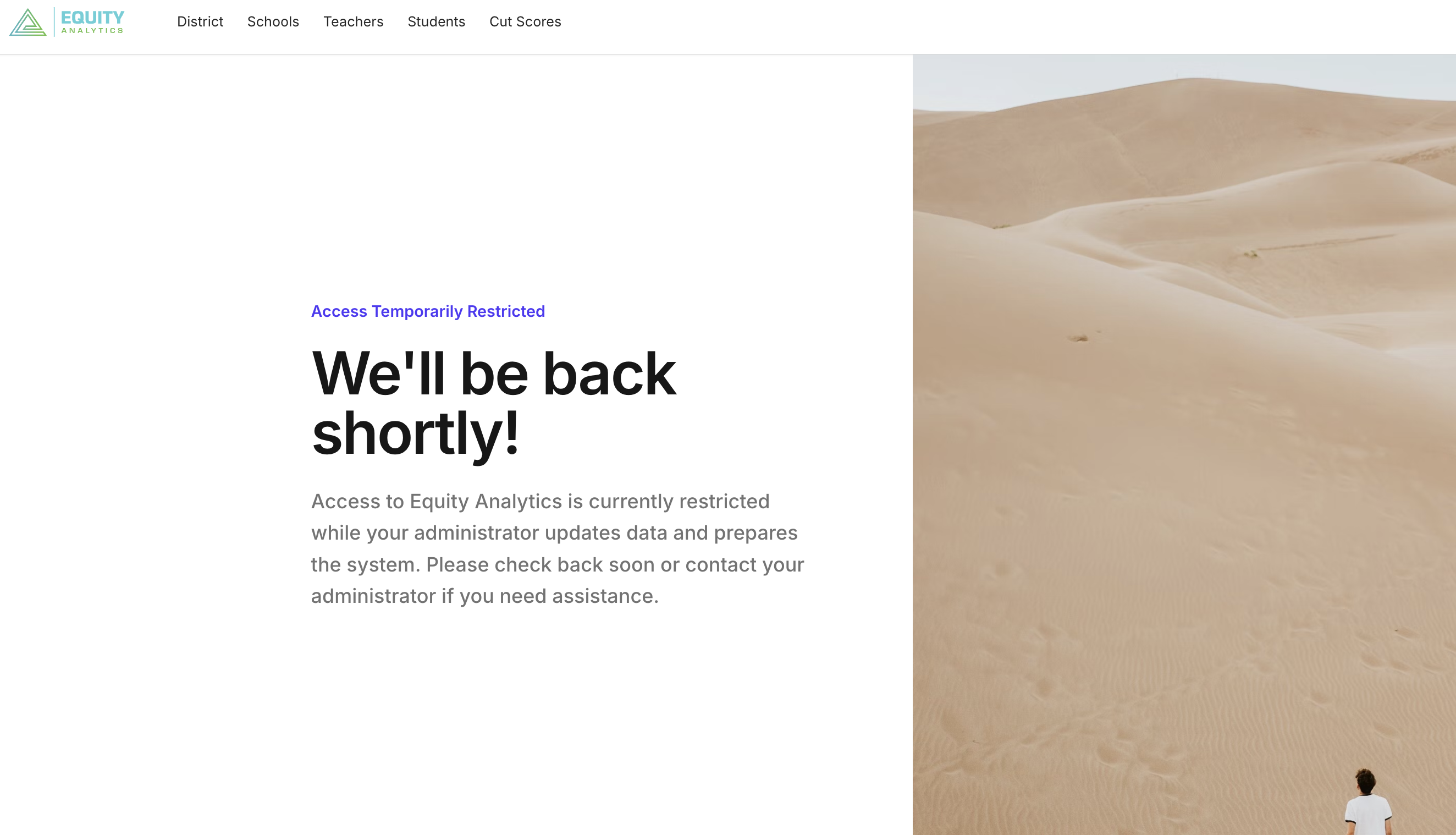
While enabled, teachers, school users, and other non-district_admin roles will be redirected to a maintenance page. Plan communications accordingly!
What Users See
- District Admins: The application remains accessible with a maintenance banner.
- All Others: A maintenance screen with instructions to try again later or contact support.
Need Help?
- Helpdesk Ticket: Helpdesk Ticket
- Website: https://equityanalyticsms.com