Editing Acceleration Metrics
Overview
While Equity Analytics generates acceleration metrics automatically from each student's course enrollments and outcomes, the AP, DC, and Industry Performance Counts for an individual student can be manually edited when the automatically generated numbers need correction.
This page covers when and how to use the manual edit flow.
Why Manual Editing Exists
The acceleration metric calculation depends on accurate course-enrollment data from your SIS plus accurate course-completion records. Manual editing exists to handle cases where the automatically derived counts do not match reality:
- Vendor data discrepancies: the SIS export shows a course completion that did not actually occur, or vice versa.
- Hand-counted course rosters: your district maintains acceleration completion records outside the SIS and needs to enter them directly.
- Late-arriving data: a course outcome arrived after the standard data pull and needs to be reflected in the metric without re-running an import.
If you find yourself editing the same metrics every term, that usually signals an upstream data issue worth fixing in the SIS export. Manual edits are for exceptions, not the default flow.
Accessing the Edit View
- Navigate to Acceleration Metrics in the main navigation to land on the index.
- Click any student row to open that student's acceleration metric show page.
- On the show page, click the Edit button in the breadcrumb area.

The Edit button only appears for roles authorized to make changes (see Editing Permissions below).
What You Can Edit
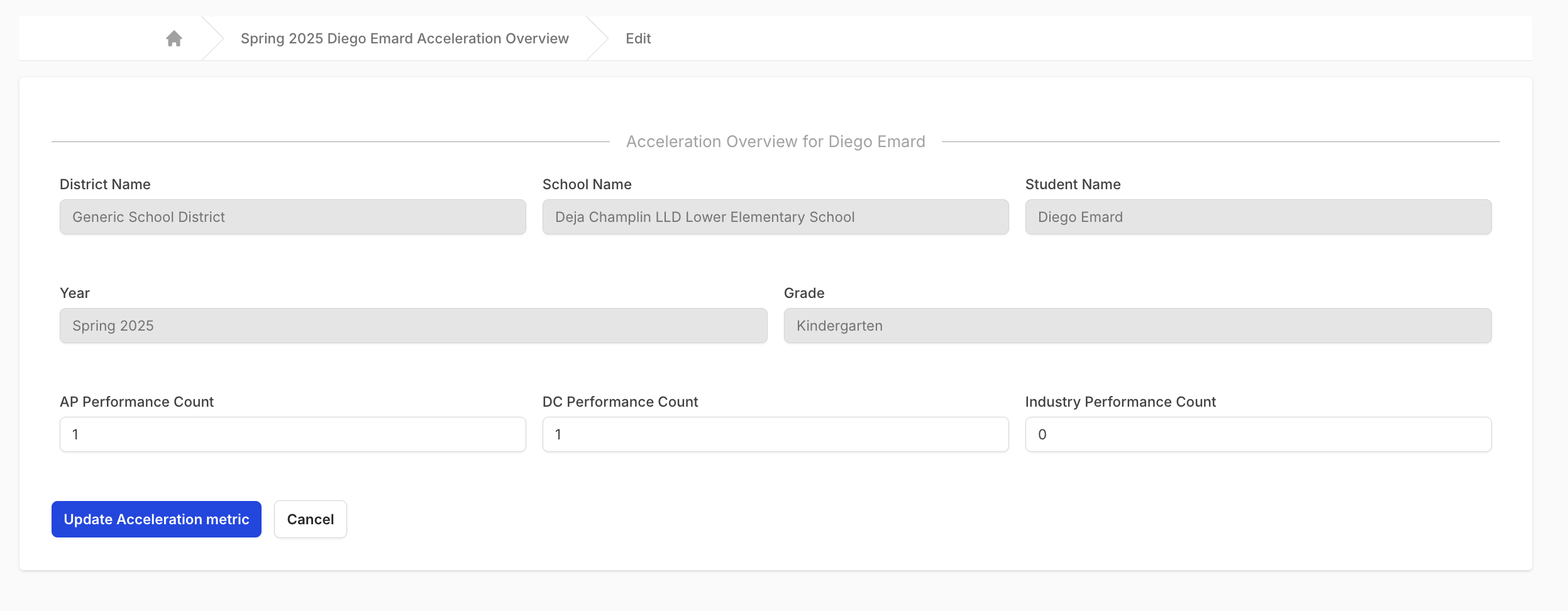
The edit form exposes three editable fields:
- AP Performance Count
- DC Performance Count
- Industry Performance Count
Read-only context is displayed alongside so you always have the full student context:
- District Name
- School Name
- Student Name
- Year
- Grade
The participation counts and the course lists (AP / DC / Industry Course Overview) are not directly editable; they reflect the enrollment data from your SIS.
What an Edit Means: Sticky Overrides
Once you change a performance count and save, that field is marked as a manual override. From that point on:
- The value stays at what you entered.
- Future schedule imports stop overwriting that specific field for that student. Imports continue to update the other unedited fields normally.
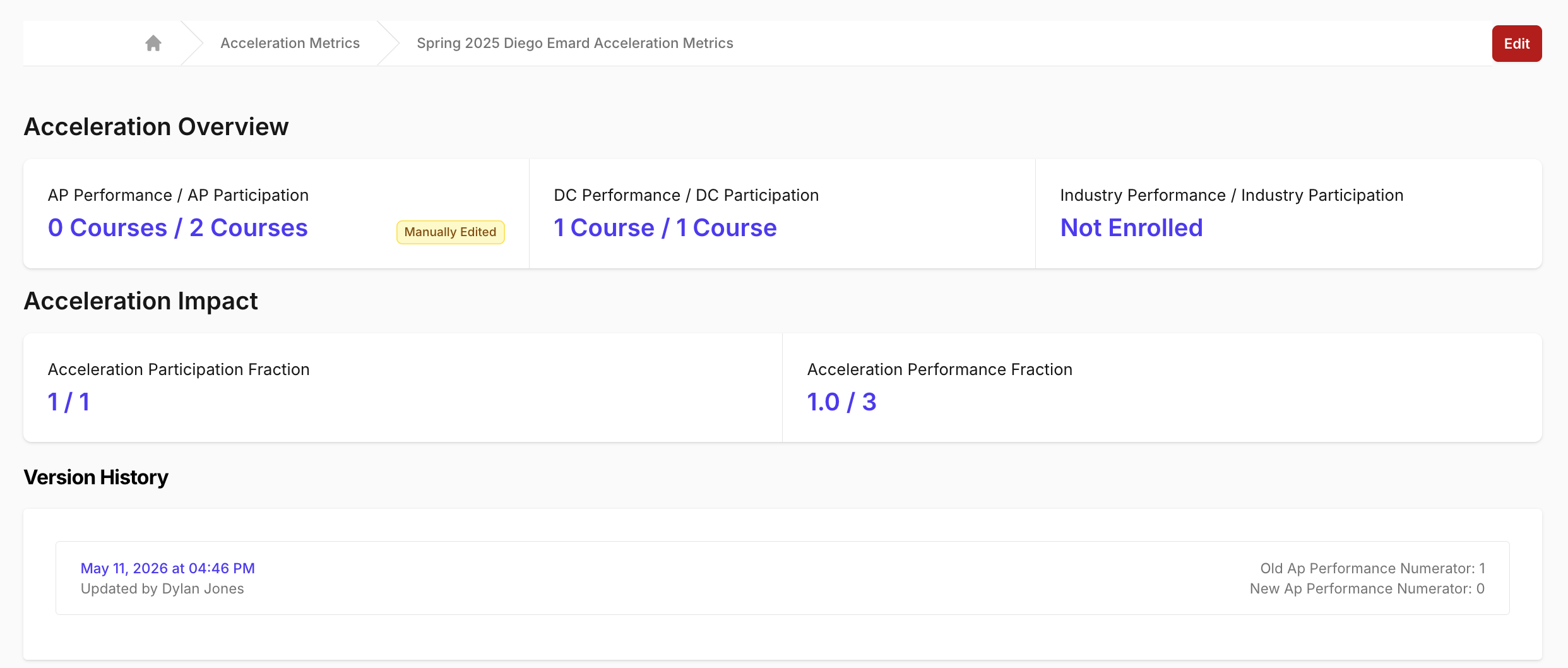
- A Manually Edited badge appears next to the affected metric on the show page, and the same status surfaces on the PDF exports: the show-page PDF prints the badge text in the header, and the index PDF lists
Manually Edited (AP)/(DC)/(Industry)in the Edited column for that student's row.
The override is per-field, per-student. Editing the AP Performance Count for one student does not mark DC or Industry as overridden, and does not affect any other student.

Ripple Effects
Changing an editable performance count changes everything derived from it. After a save you should expect:
- A new value for the metric's Performance Numerator, which is recomputed from the AP, DC, and Industry performance counts together.
- A new Performance Fraction displayed on the show page.
- A queued background job that recomputes the Acceleration Impact (the aggregated school- and district-level projections) for the affected account.
Plan for a brief delay before the impact-level projections reflect your edit while the job runs.
Validation Rules
A save fails with a form error if any of these are violated:
- Each performance count must be a whole number (no decimals).
- Each count must be 0 or greater (no negatives).
- Each count must be less than or equal to its corresponding denominator. The denominator is the number of qualifying courses the student is enrolled in for that category. If a student has 2 AP courses on their schedule, the AP Performance Count cannot exceed 2.
- If the denominator for a category is 0 (no qualifying courses), the count for that category must also be 0.
The metric must continue to include at least one acceleration course overall. The form will not accept a save that leaves the student with zero participation across all three categories.
Editing Permissions
The edit flow is gated by role:
- District admins can edit any acceleration metric in their district.
- School users can edit acceleration metrics for students at the schools they're assigned to. A school user cannot reach the edit page for a student outside their school assignments.
- Platform admins also have edit access.
Other roles (district users, teacher users) can view acceleration metrics but cannot edit them.
The Edit button on the show page is hidden when the current user lacks edit permission.
Version History
Every manual edit to a performance count is recorded. On the show page, below the Acceleration Impact card, a Version History section lists each edit to each field that has ever been overridden:
- Timestamp of the change.
- The user who made it (linked to their profile).
- Old value and new value for the field that changed.
A separate history block appears per overridden field, so editing AP Performance Count for a student creates one block; later editing DC Performance Count for the same student adds a second block alongside it.
This history is read-only. It exists so you (and anyone auditing the metric) can see what the counts were before any manual changes were applied, who applied them, and when.
Reverting an Override
There is no one-click "remove this override" action. If you want to bring an edited count back to its automatically derived value:
- Reference the version history on the show page to confirm the prior value.
- Click Edit and enter that value in the field.
- Save.
The field remains marked as a manual override (future imports still leave it alone), but the displayed value matches the prior automatic count. If you need the override flag itself cleared so future imports can take the field over again, open a Helpdesk Ticket.
Support
Need help with manual edits to acceleration metrics?
- Helpdesk Ticket: Helpdesk Ticket
- Website: https://equityanalyticsms.com