Uploading Your Third Grade Pass Rate File
The File Uploader allows you to manually import the Third Grade First Time Pass Rate file your state department sends after the spring administration into Equity Analytics.
Third grade pass rates process automatically. You'll receive an email confirmation after uploading, and a second completion email once the import has finished and your pass rates are ready to view.
Accessing the File Uploader
You can access the File Uploader from anywhere in Equity Analytics by finding the File Upload icon on the top navigation bar:
- Click the File Upload icon in the navbar.
- Select Third Grade Pass Rate from the dropdown menu.
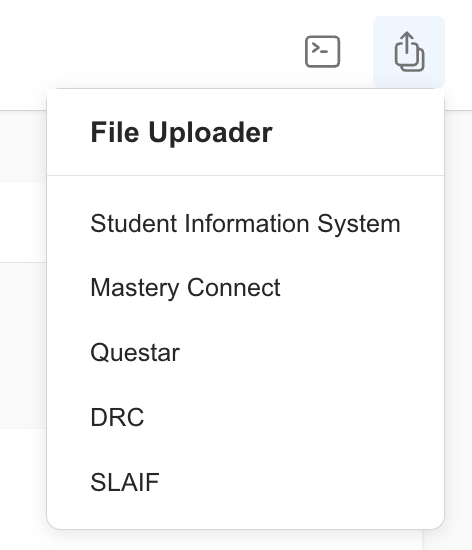
Only District Admins have permission to upload assessment files. If you do not see this option, contact your district administrator for access.
Upload Requirements
Before uploading, make sure your file meets the following:
| File Type | File Types Allowed | Max File Size Allowed |
|---|---|---|
| Third Grade Pass Rate | csv | 10 MB |
The file must contain at least these two columns (case insensitive, surrounding text allowed):
- School Number — used to attribute each row to the correct school in your district
- Met/Did Not Meet — the proficiency outcome (
MetorDid Not Meet)
The file must be the original download from the state department and remain untouched (no edits or changes). Removing or renaming the required columns will cause rows to be skipped.
Step-by-Step: Third Grade Pass Rate Upload
-
Open the File Uploader
Navigate to the file uploader screen using the method above. -
Indicate the Assessment Details
Select the Year. Double-check that the selected year matches the assessment data in your file. -
Drag Your File
Drag and drop your.csvfile into the upload area. -
Verify File Name and Size
Ensure your file:- Matches the allowed file type.
- Is smaller than 10 MB.
-
Click
Finish
This step saves your upload to the system and starts processing. -
Receive Confirmation Email
You'll receive an email confirming your submission immediately. -
Receive Completion Email
Once processing finishes, you'll receive a second email letting you know the first time pass rate data has been imported and is ready to view. The email includes a link to log back in and review the rates.
Both emails are sent to the user who performed the upload. The confirmation email includes your name, district, data type, and exact upload time. The completion email confirms the import succeeded — or, if it failed, lets you know a member of our team has been notified and will reach out to help. Failure emails also cc our support inbox to auto-create a ticket.
Where Your Data Appears
Once processing finishes, the First Time Pass Rate for your district and each school is visible on the Third Grade Pass Rates page (under the Spring year selector). It populates the First Time column alongside Benchmark 1, Benchmark 2, and Benchmark 3 rates.
Troubleshooting
- Upload Rejected at Submission: The uploader checks that the file isn't empty and that both the School Number and Met/Did Not Meet columns are present before accepting it. If you see a message like "School Number column not found", "Met/Did Not Meet column not found", or "File is empty", the file does not match the required format above.
- File Rejected: Check that the file meets the upload requirements and hasn't been edited.
- No Pass Rates Updated: Verify the file includes the School Number and Met/Did Not Meet columns. Each row is attributed to a school in your district by matching the School Number in the file to the schools on your account. Rows whose School Number doesn't match a school in your district will not appear on any school's
First Timecard, but will still be counted in your district-level total. - Wrong Data Displaying: Verify you selected the correct year during upload.
- Didn't Receive a Confirmation Email? Check your spam or junk folder first. If you still don't see it, please open a Helpdesk Ticket.
- Received a Failure Email? This means the file was uploaded but the import didn't produce a complete set of records (a missing district record, or one or more active third-grade schools without a record). A member of our team has been notified and will reach out — there's no need to re-upload. The failure email links back to this guide so you can verify the file format in the meantime.
- Missing Upload Button: Try refreshing the page or clearing your browser cache.
Need Help?
- Helpdesk Ticket: Helpdesk Ticket
- Website: https://equityanalyticsms.com