Setting School Impact Goals
This guide walks school-level users through how to set a School Impact Goal in Equity Analytics, allowing each school to define targets and track overall progress as the year progresses.
Step 1 — Sign In
Log in to Equity Analytics with your district email credentials.
Step 2 — Open the Impact Goals Page
From the homepage, click the Impact Goals tile.
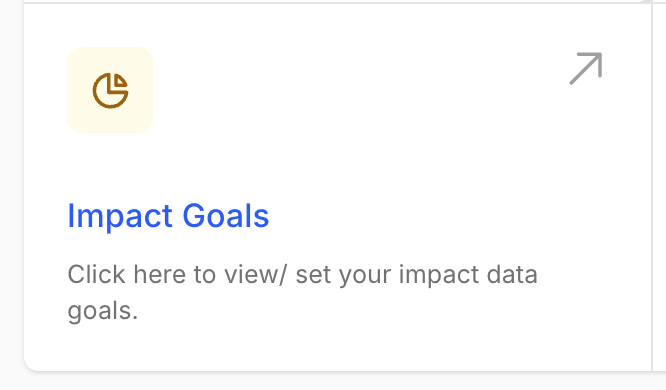
You will land on the Impact Goals page.
If no goals have been created yet, you will see a message like:
No Impact Goals have been created yet for your school. Click New Impact Goal above to get started.
Step 3 — Click New Impact Goal
In the top right, click the green New Impact Goal button.
This opens the School Impact Goal form.
School Impact Goal Forms
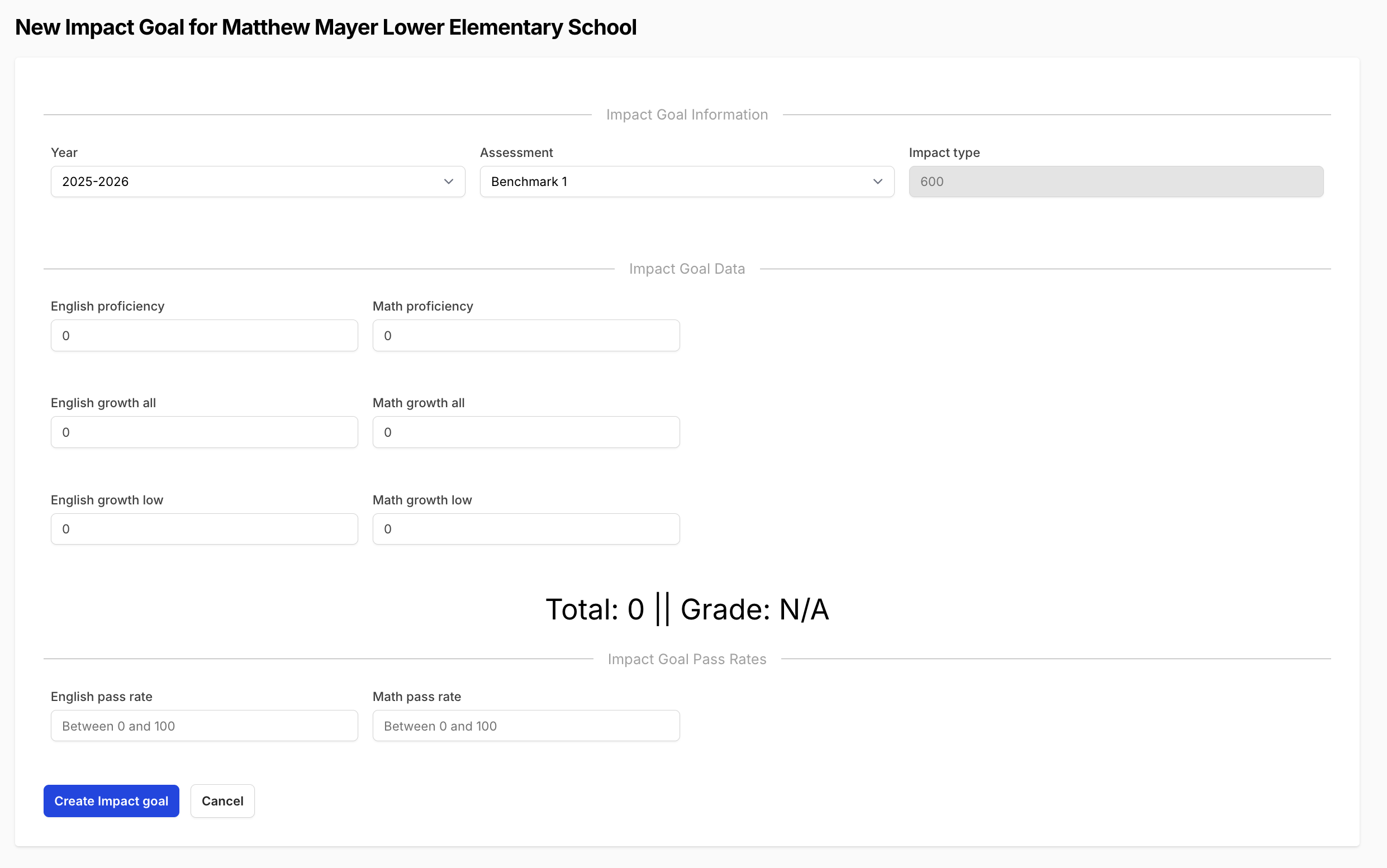
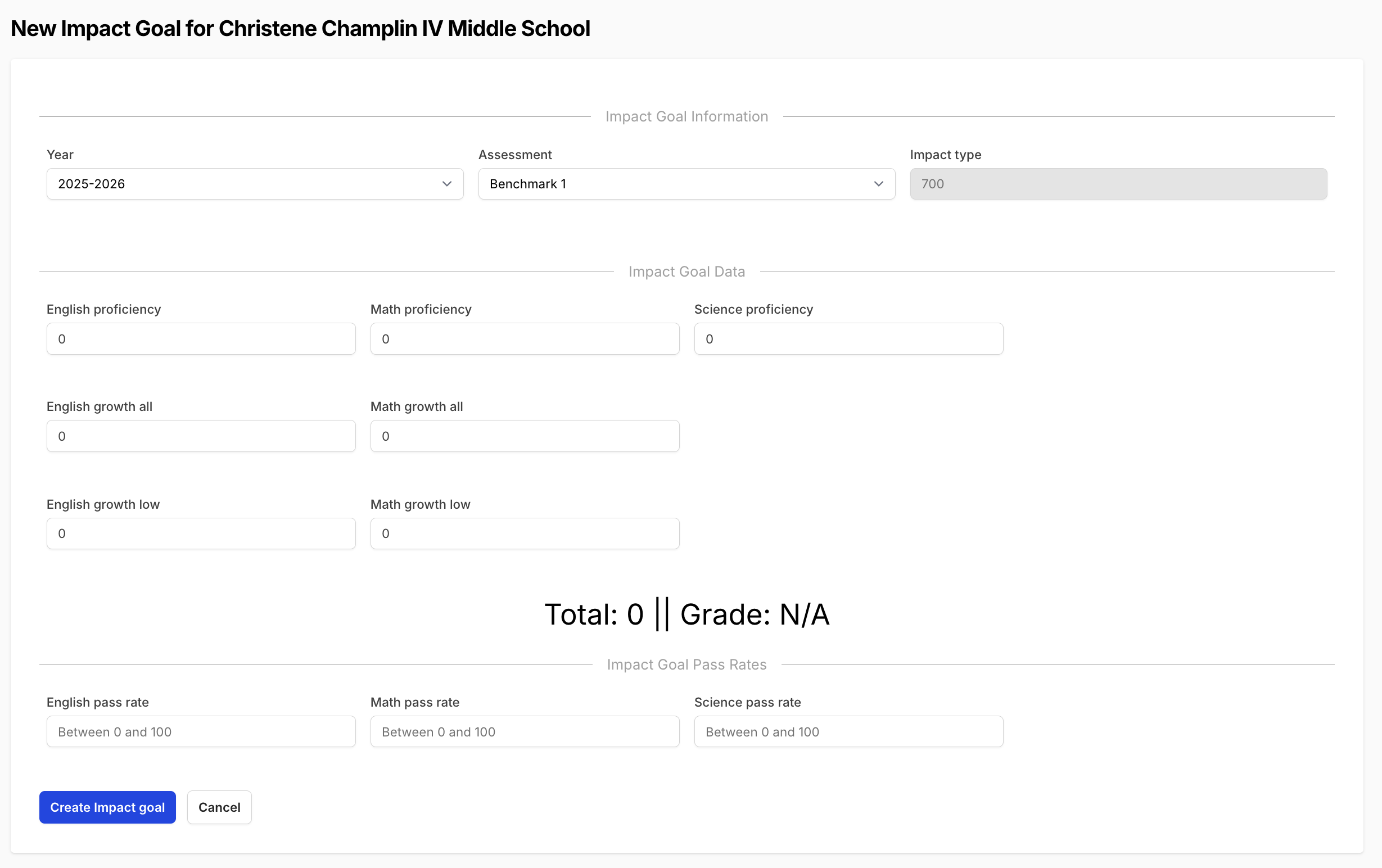
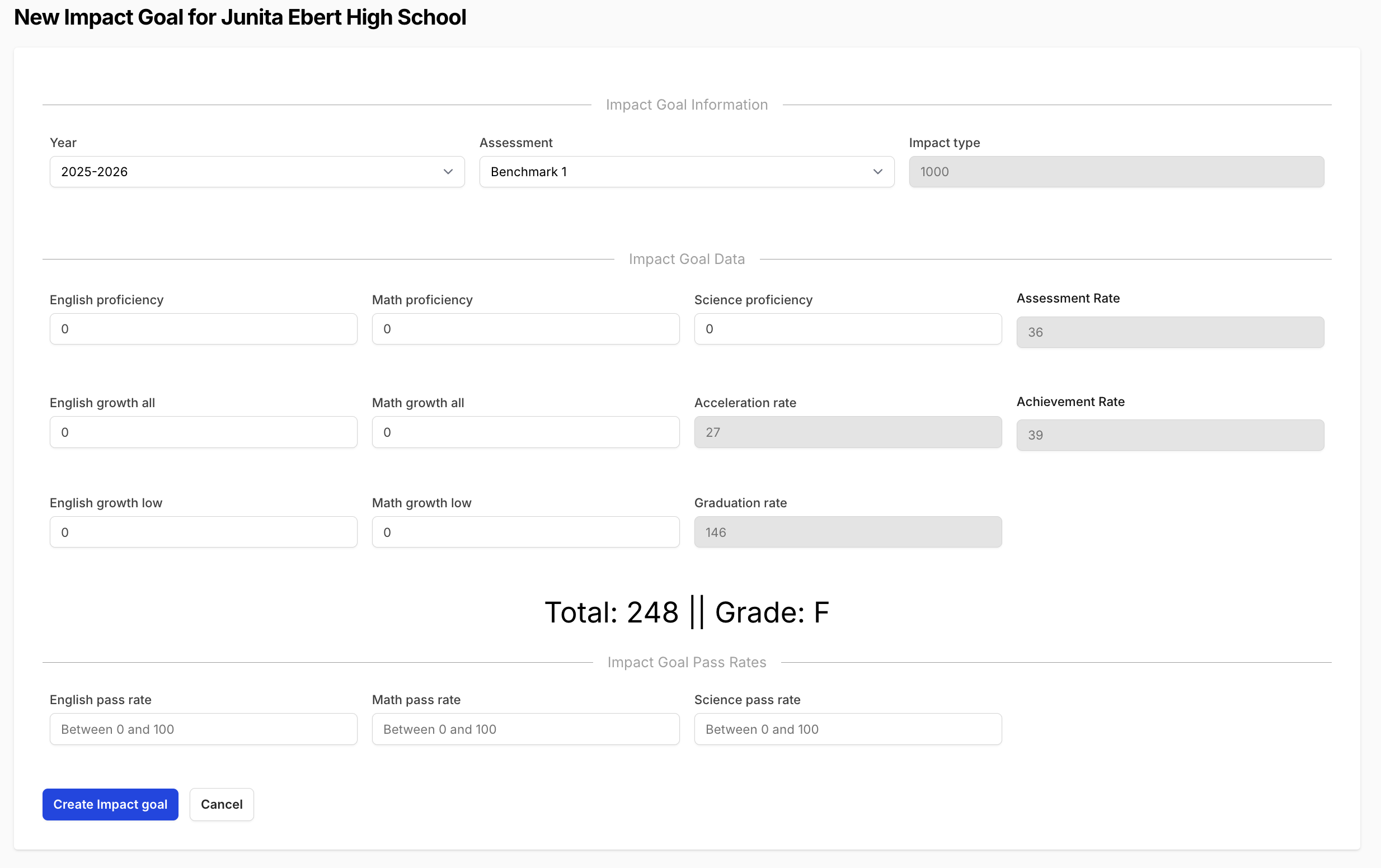
There are three versions of the School Impact Goal form based on the total possible points for the school. Use the form that matches your school type:
-
600-point School
-
700-point School
-
1000-point School
Step 4 — Complete the Impact Goal Information
At the top of the form, select:
- Year (example: 2025–2026)
- Assessment (example: Benchmark 1 or Spring MAAP)
Step 5 — Enter Your Goal Values
Fill in the goal values under Impact Goal Data, such as:
- English Proficiency
- Math Proficiency
- Science Proficiency
- Growth (all students and low students)
- Pass rates
As you enter values, the Total and Projected Grade will update automatically at the bottom of the form.
Some values are preset by the district and can only be edited for 1000-point schools. For 1000-point schools, the following values are locked and cannot be changed manually:
- Achievement Rate
- Assessment Rate
- Graduation Rate
If any of these values need to be updated, your district administrator must make the changes in the system settings.
Step 6 — Save the Impact Goal
Click Create Impact Goal to save.
The saved goal will now appear on the school’s Impact Goals page.
Step 7 — Editing an Existing Impact Goal
To make changes to an existing Impact Goal, click the red Edit button in the top-right corner of the page.
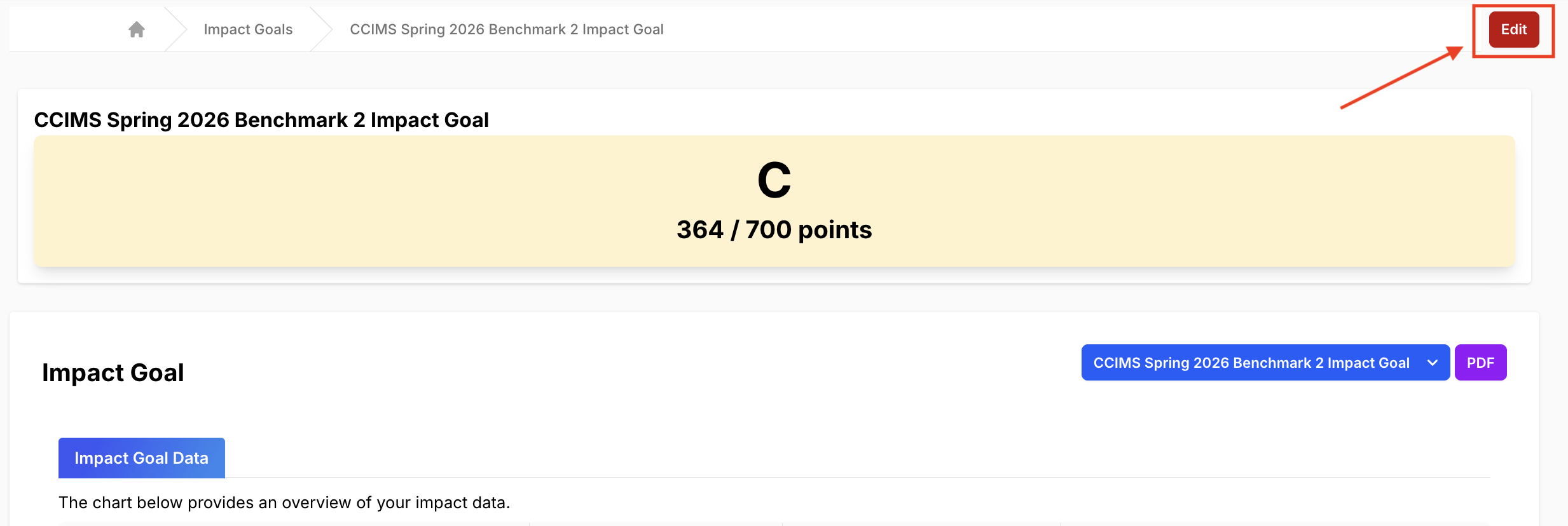
After editing, click Update Impact Goal to save your changes.
You cannot create more than one Impact Goal using the same year and assessment combination. Each year and assessment can only have one school Impact Goal.
Need Help?
- Helpdesk Ticket: Helpdesk Ticket
- Website: https://equityanalyticsms.com