Locking the Impact Goals Module
Only district admin users have the ability to lock or unlock the Impact Goals module.
No other user type can create, edit, or delete Impact Goals once the module is locked.
Locking prevents all users from:
- Creating new Impact Goals
- Editing existing Impact Goals
- Deleting Impact Goals
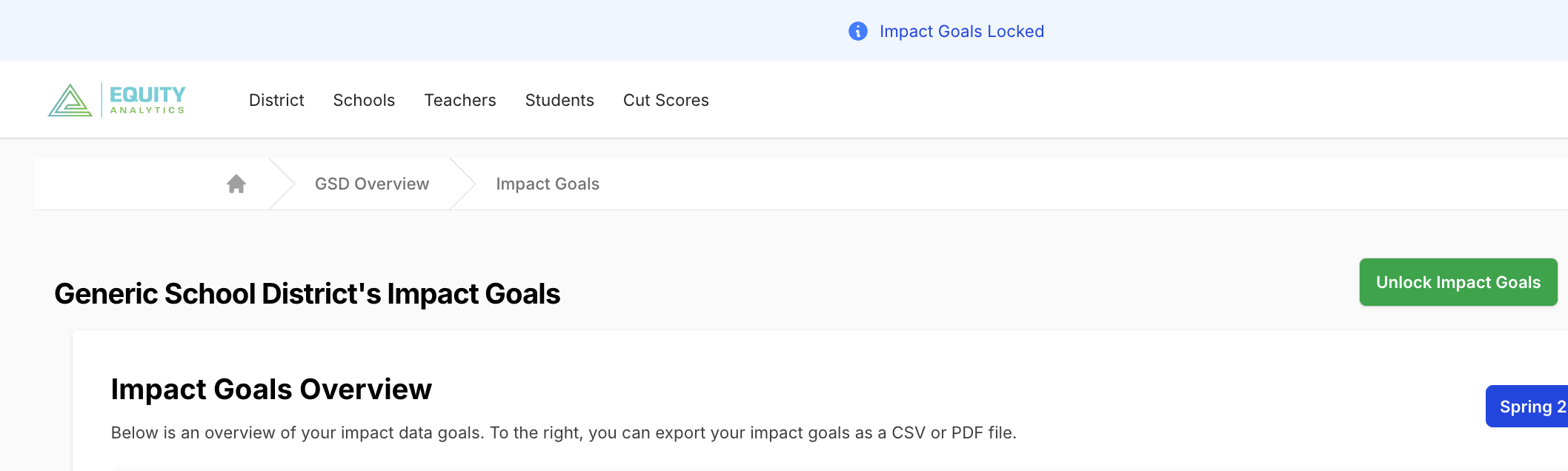
- A blue banner will appear across the top of the page to notify all users that goals are locked
Purpose of Locking Impact Goals
Before data has been finalized for a benchmark or assessment window, locking Impact Goals:
- Protects goal integrity
- Ensures alignment across the district
- Prevents accidental changes
- Ensures all reports and exports use consistent, approved targets
How to Lock Impact Goals
- Go to the Impact Goals page at the district level.
- Click the red Lock Impact Goals button at the top-right of the page:
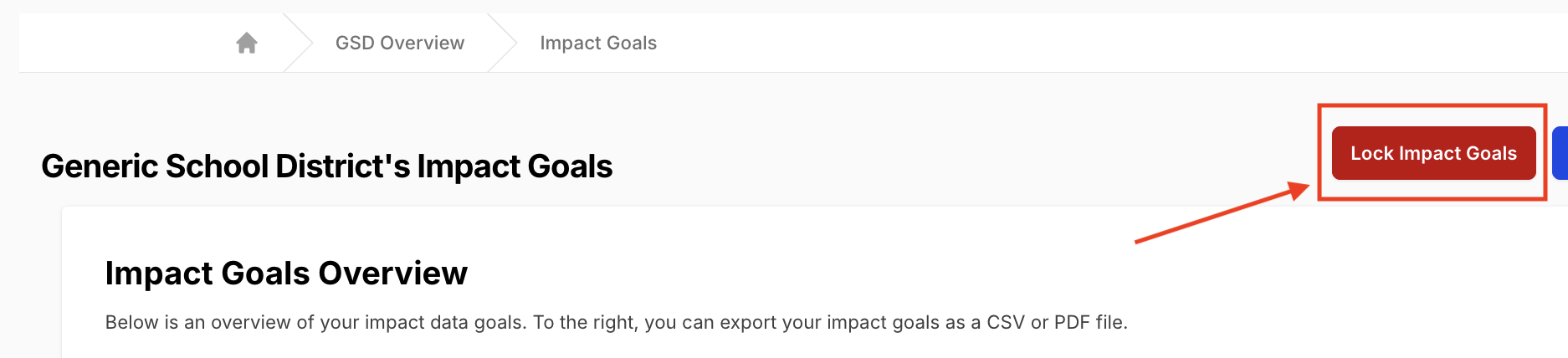
After locking, the goal fields will no longer be editable, and the New Impact Goal button will be disabled.
Only district admin users have permission to lock the module. If you do not see the red button, contact your district admin user.
Unlocking Impact Goals
Only district admin users can unlock the Impact Goals module.
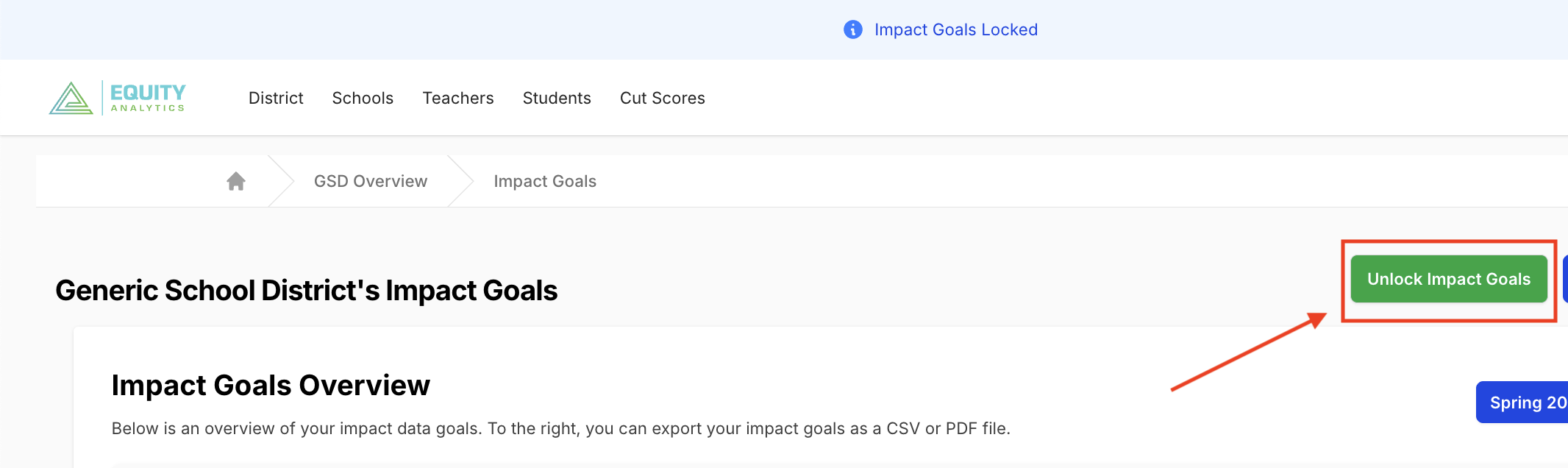
If Impact Goals are currently locked, a blue banner will appear at the top of the page, and a green Unlock Impact Goals button will be visible in the top-right corner of the screen:
To unlock the module:
- Click the green Unlock Impact Goals button.
- The module will reopen, and schools and teachers will be able to edit or create new goals.
Only district admin users have permission to unlock the module. If you do not see the green button, contact your district admin user.
Recommendation
Lock the Impact Goals module before all assessment data has been finalized for the benchmark period.
This ensures that every school and teacher goal remains aligned with the district’s approved expectations.
Need Help?
- Helpdesk Ticket: Helpdesk Ticket
- Website: https://equityanalyticsms.com