Uploading Your SLAIF Files
The File Uploader allows you to manually import your SLAIF assessment file into Equity Analytics.
Manual uploads do not process automatically, but you’ll receive an email confirmation immediately after uploading. The Equity Analytics team will process your files and notify you once updates are complete.
Accessing the File Uploader
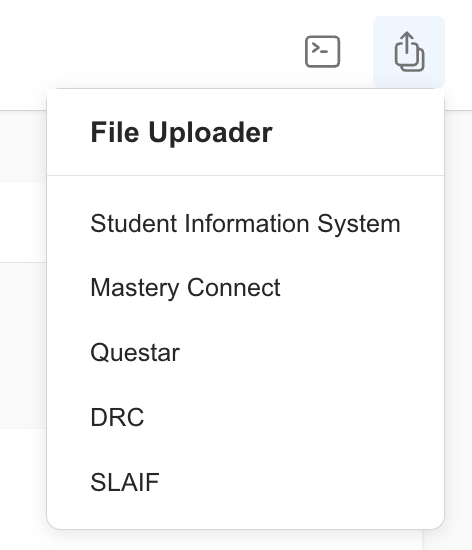
You can access the File Uploader from anywhere in Equity Analytics by finding the File Upload icon on the top navigation bar:
- Click the File Upload icon in the navbar.
- Select the type of files you want to upload from the dropdown menu.
Only District Admins have permission to upload user files. If you do not see this option, contact your district administrator for access.
Upload Requirements
Before uploading, make sure your files meet the following:
| File Type | File Types Allowed | Max File Size Allowed |
|---|---|---|
| SLAIF | xlsx | 10 MB |
The file must be the original download from the vendor and remain untouched (no edits or changes).
Step-by-Step: SLAIF File Upload
-
Open the File Uploader
Navigate to the file uploader screen using the method above. -
Indicate the Assessment Details
Select the Year. Double-check that the selected year matches the assessment data in your file. -
Drag Your File
Drag and drop your.xlsxfile into the upload area. -
Verify File Name and Size
Ensure your file:- Matches the allowed file type.
- Is smaller than 10 MB.
-
Click
Finish
This step saves your upload to the system. -
Receive Confirmation Email
After uploading, you’ll receive an email confirming your submission.
The confirmation email is sent to the user who performed the upload. You’ll receive an email after uploading that includes your name, district, data type, and the exact upload time.
Troubleshooting
- File Rejected: Check that the file meets the upload requirements and hasn’t been edited.
- Wrong Data Displaying: Verify you selected the correct year during upload.
- Didn’t Receive a Confirmation Email? Check your spam or junk folder first. If you still don’t see it, please open a Helpdesk Ticket.
- Missing Upload Button: Try refreshing the page or clearing your browser cache.
Need Help?
- Helpdesk Ticket: Helpdesk Ticket
- Website: https://equityanalyticsms.com